How to update your Billing Method with E-xact
E-xact's billing system has two payment method options to choose from: credit card or ACH. If ACH is selected, validation is required through Link, or a $0.01 microdeposit transaction.
Locate the Request Email
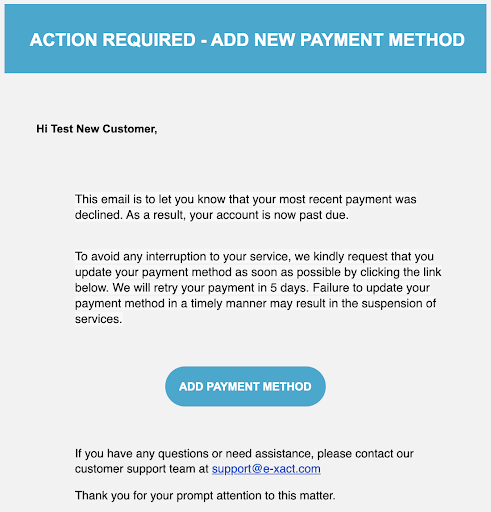
Search your inbox for an email from E-xact with the subject line: E-xact Transactions (Canada) Ltd. is requesting your payment information. (If you don't see it, please check your Spam or Junk folder.)
Open the Add or Update Payment Method Link
Open the email and click the Add or Update Payment Method button to launch the secure payment portal.
Select Your Payment Method
Choose your preferred payment type:
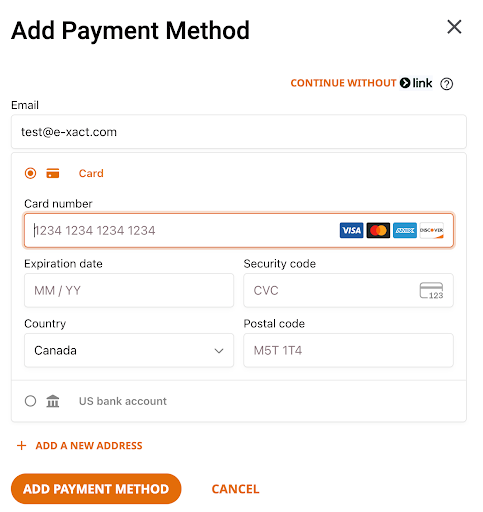
- Credit Card: Enter your card details and click Save.
- ACH (Bank Transfer): Enter your bank account and routing number, then choose one of the verification options below:
Credit Card
Enter your card details and click ADD PAYMENT METHOD
ACH - Verification Options
Option A: Instant Verification (Link — recommended)
- Select Verify Instantly. You will be prompted to log into your online banking portal through Link to authenticate your account immediately.
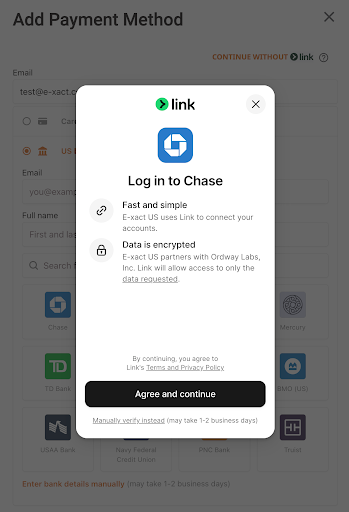
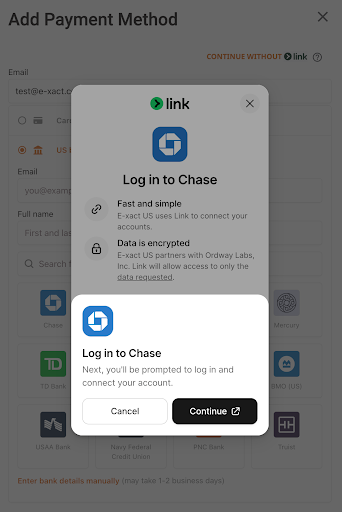
- Click Add Payment Method once the verification process is complete.
Option B: Manual Verification (Microdeposit)
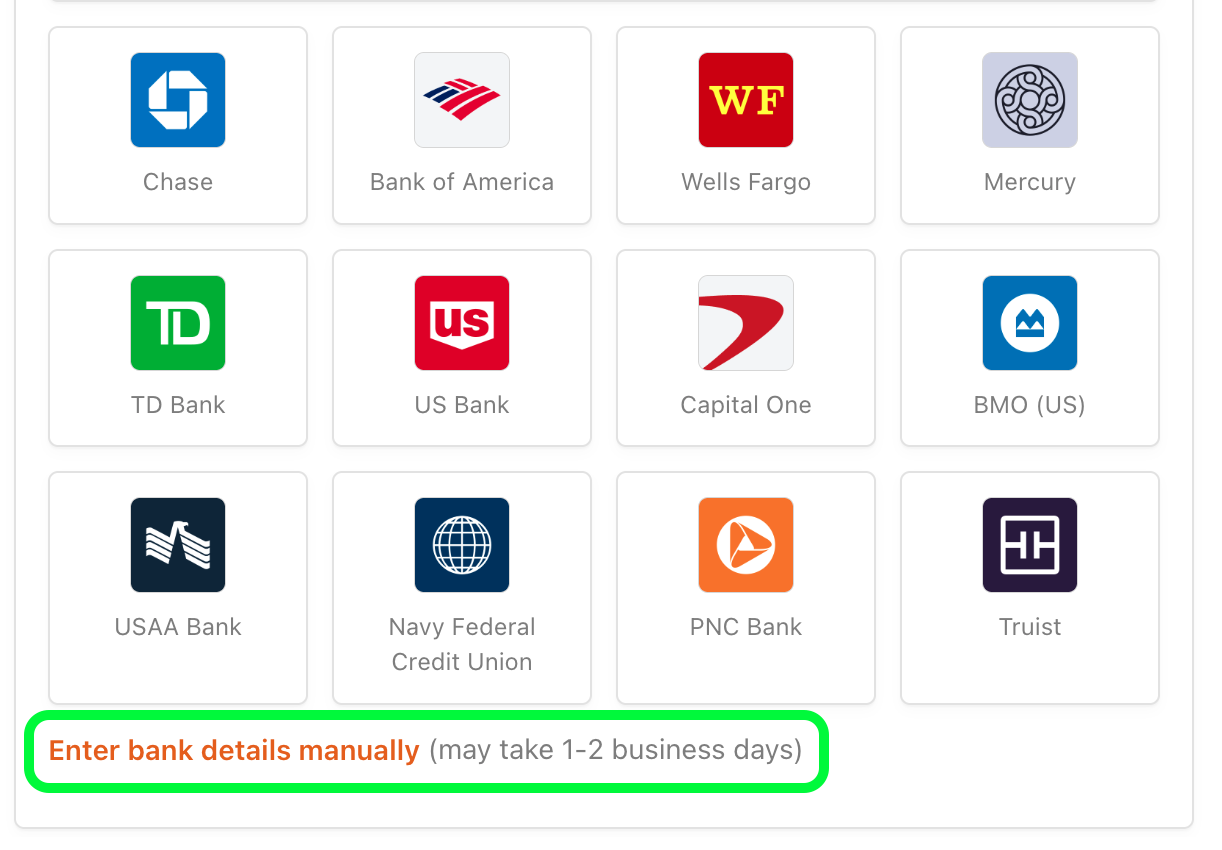
Select "Enter bank details manually" (pictured below):
- Enter your bank details via the link pop-up window.
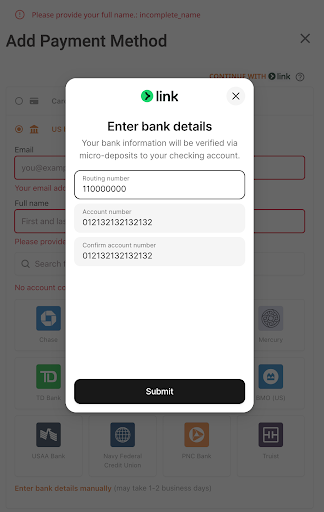
- Click Add Payment Method once the verification process is complete.
MicrodepositWe will issue a $0.01 microdeposit to your bank account within two business days.
- Look for a deposit descriptor on your bank statement starting with “SM” followed by 4 characters (e.g., SMABCD).
- Email this exact 6-character code to [email protected] so our team can complete your account verification.
Need Assistance?
If you run into any issues or have questions about updating your billing details, please reach out to our Support team at [email protected].
Updated 3 months ago